Schema Editor
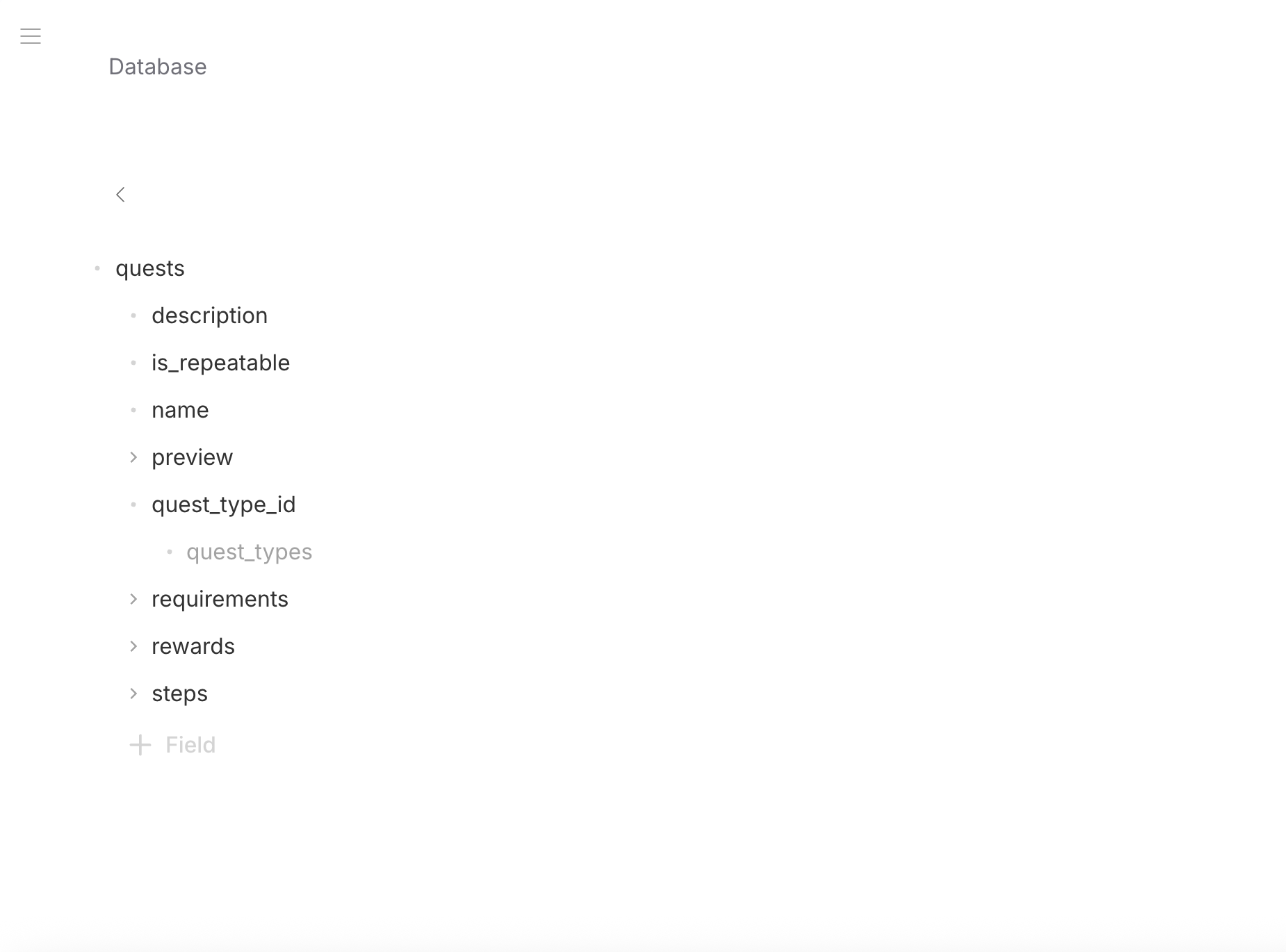
The Schema Editor provides a visual interface for designing table schemas. Add fields, configure types, set up foreign keys, define computed fields, and attach files — all without writing JSON manually.
Creating a Table
- Click New Table in the sidebar
- Enter a table name (used as the table identifier)
- The Schema Editor opens with an empty object schema
Adding Fields
Click Add Field to add a new field. Configure:
- Name — field identifier (used in API queries)
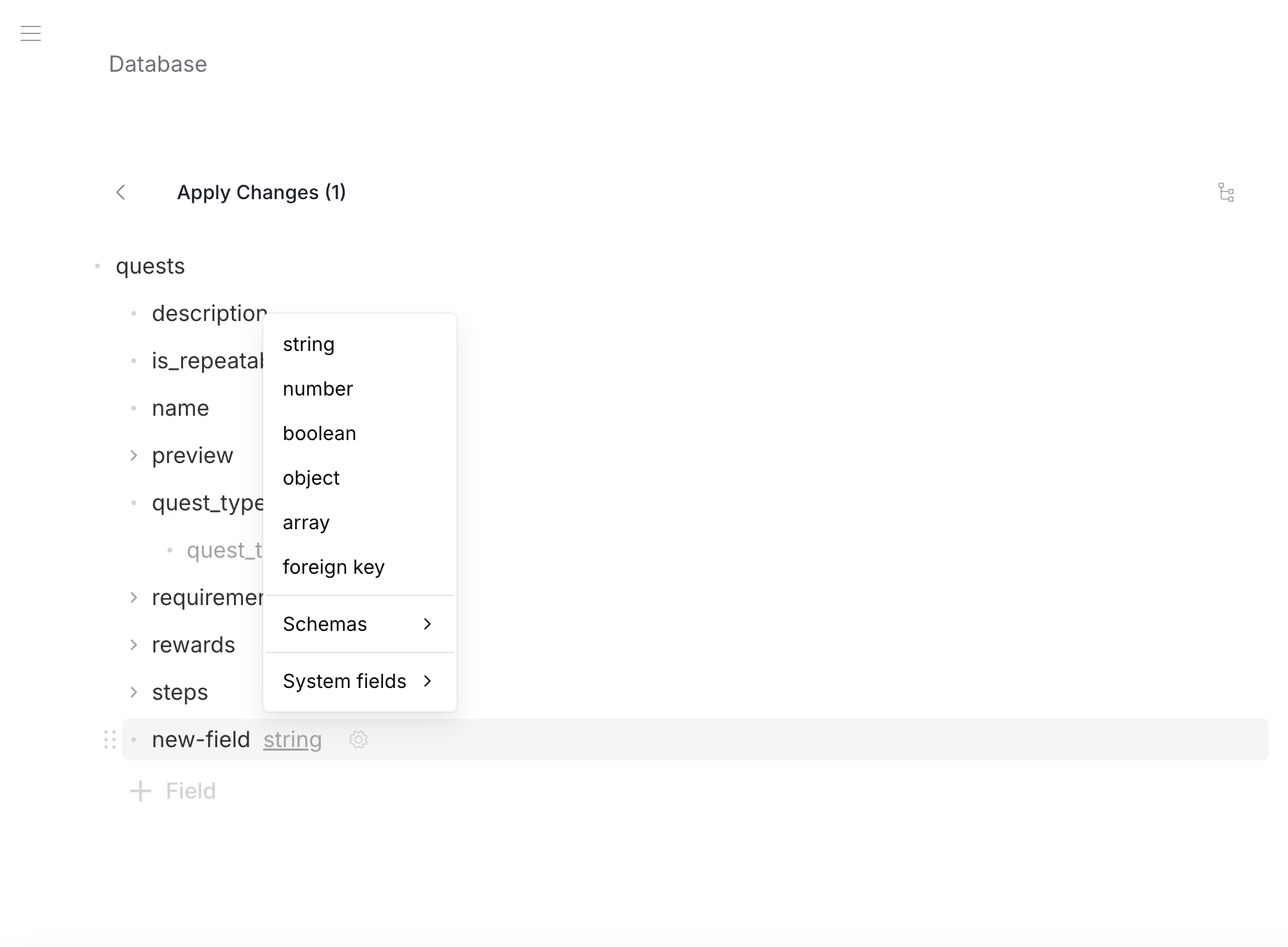
- Type — String, Number, Boolean, Object, Array
- Default value — required for all fields
- Description — optional documentation
Field Types
| Type | Options |
|---|---|
| String | Format (plain, markdown, HTML, date-time, email) |
| Number | Minimum, maximum |
| Boolean | Default true/false |
| Object | Nested fields (recursive) |
| Array | Item type (string, number, boolean, object, file, FK) |
Foreign Keys
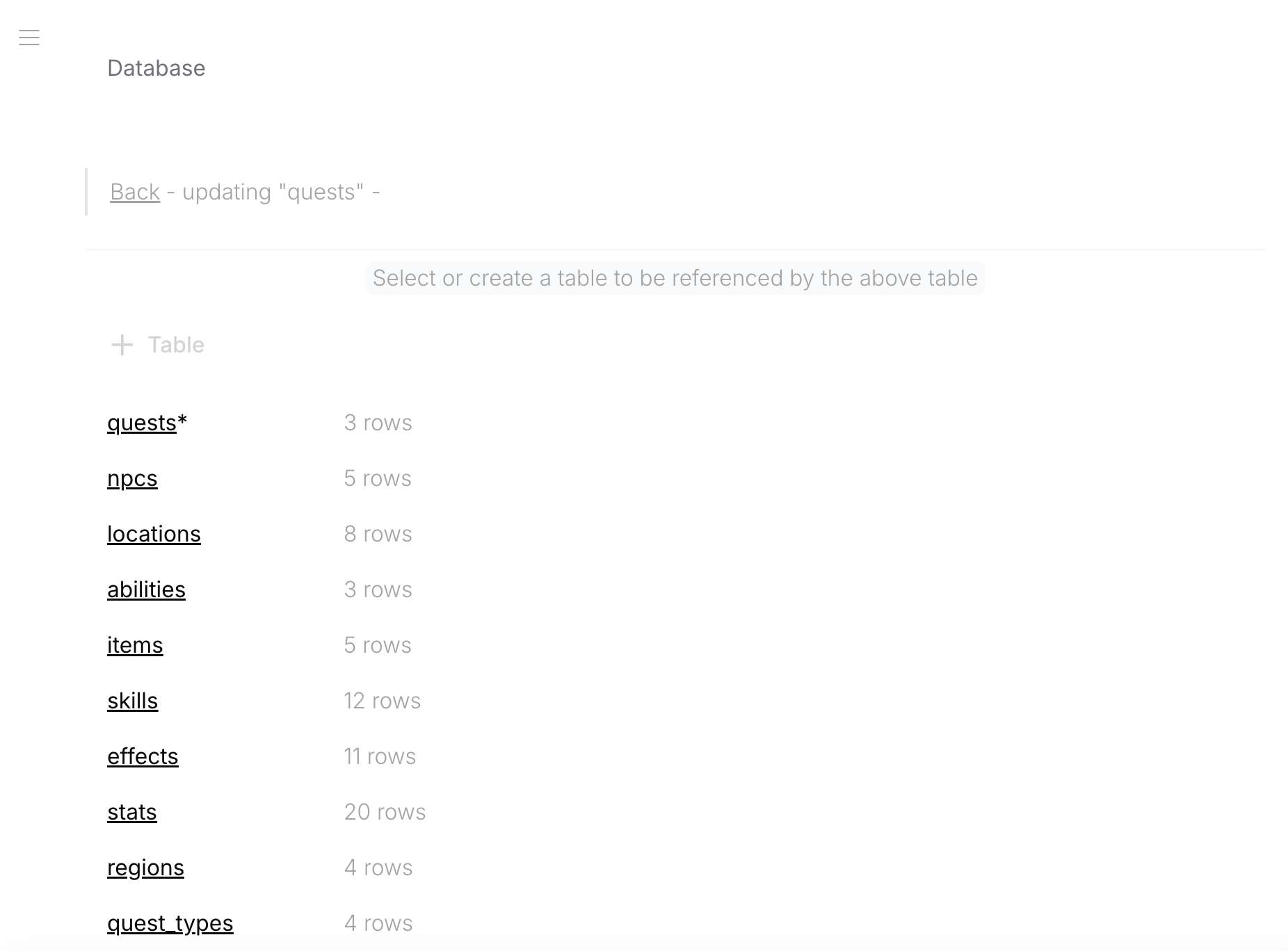
To create a relationship:
- Add a String field
- Enable Foreign Key
- Select the target table
For array relationships, create an Array field with String items and enable Foreign Key on the items.
Computed Fields
To add a computed field:
- Add a field of the desired output type
- Enter a formula in the x-formula field
- The field becomes read-only — its value is calculated from other fields
See Computed Fields for formula syntax and available functions.
File Fields
To add a file attachment:
- Add a File field (uses the File system schema internally)
- For galleries, use an Array of File items
Nested Objects
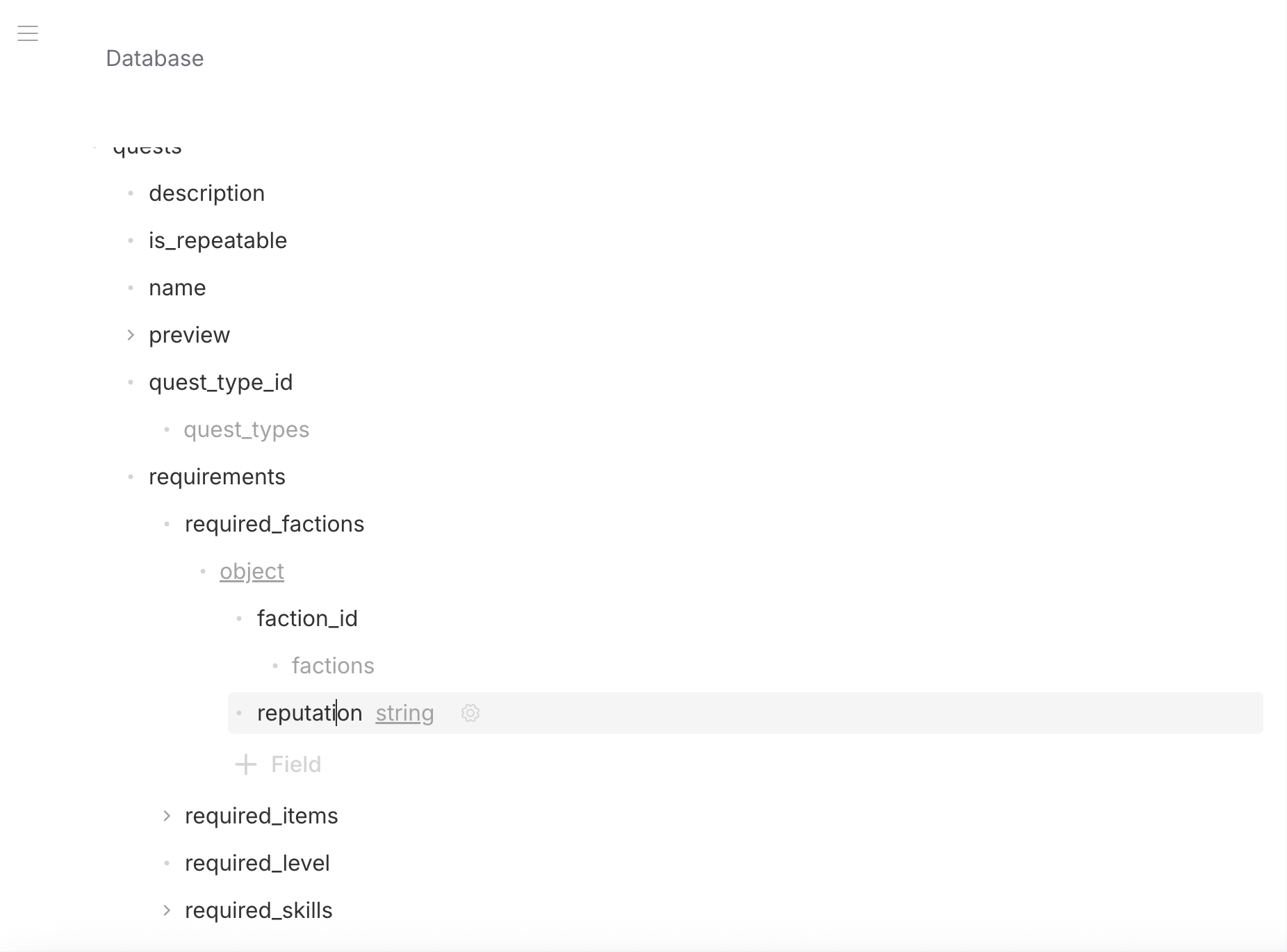
Click into an Object field to edit its sub-fields. The breadcrumb trail shows your current depth. Objects can be nested to any level.
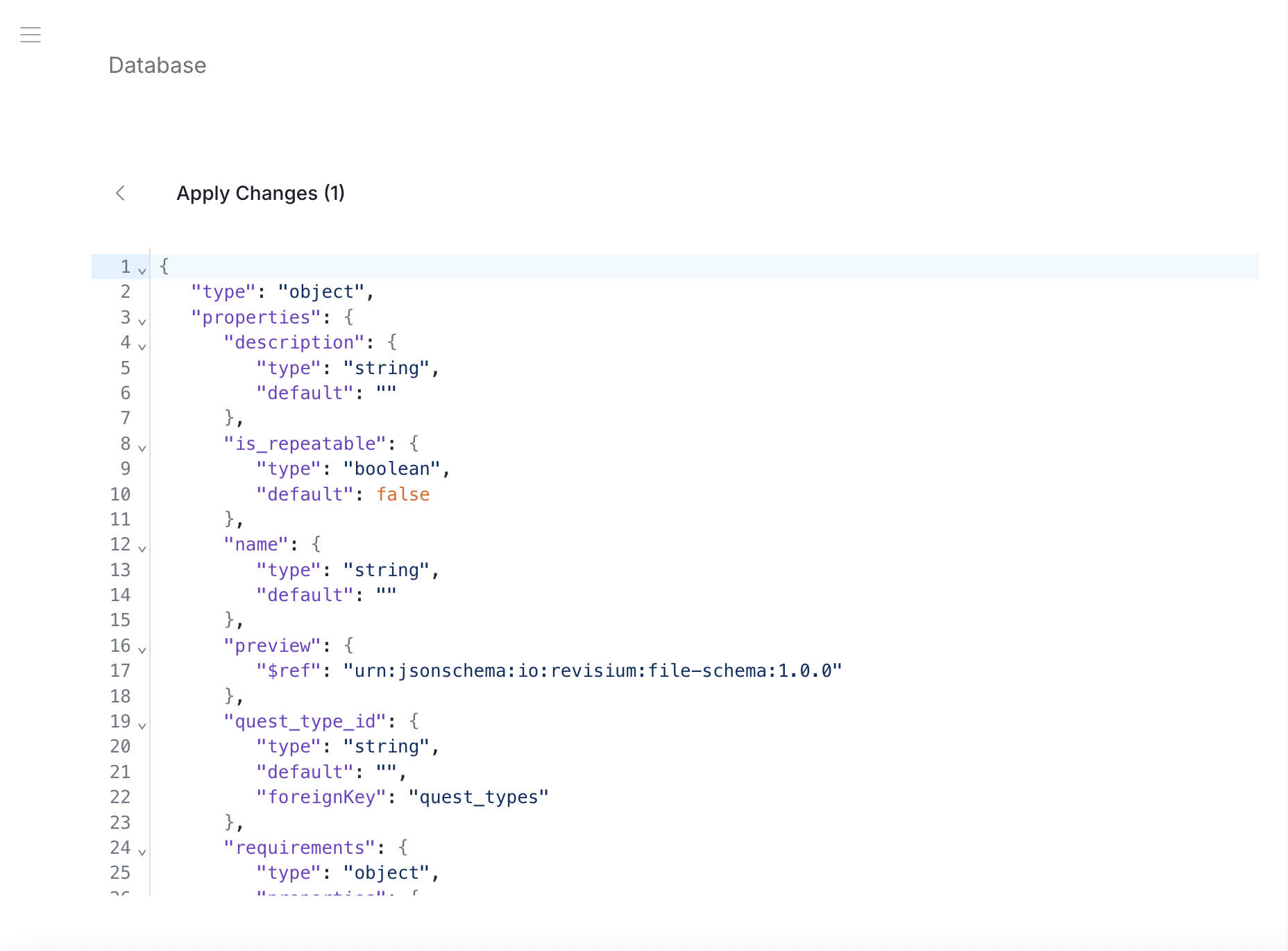
JSON View
Toggle between visual and JSON view to see or edit the raw JSON Schema directly. Changes in either view are synchronized.